

Create a writeback job
how-to Steps to accomplish one task
On this page
- Prerequisites
- Inputs
- Connect a target system
- Create a writeback job
- Verify the result
- What this changes
- If something goes wrong
Create a writeback job when you want to push a selection of golden records from CluedIn to HubSpot, Salesforce, or any REST API you connect generically. Creating a job connects the target system, chooses which golden records to send, and maps CluedIn fields to the target object’s fields. Creating a job does not push any data; you run it separately, whenever you want.
Prerequisites
- The Writeback claim. See Claims.
- For HubSpot, a private app access token with the CRM write scopes the target object needs (for example
crm.objects.contacts.write). - For Salesforce, a connected app with the username-password OAuth flow enabled, and a user with API access.
- For a Generic REST connection, the base URL of the API, and whichever one of these it authenticates with: a bearer token, an API key (as a custom header), or a Basic Auth username and password.
Inputs
| Field | Required | What it accepts | Example |
|---|---|---|---|
| Target system | Required | HubSpot, Salesforce, or Generic REST. | HubSpot |
| Connection credentials | Required | The fields the target system needs—for HubSpot, a private app access token; for Salesforce, a consumer key, consumer secret, username, password, and (if your org requires it) a security token; for Generic REST, a base URL and one of a bearer token, an API key header name/value, or a Basic Auth username/password. | — |
| Name | Required | The name of the writeback job. | Push verified contacts to HubSpot |
| Target object | Required | The object on the target system that receives the records—for example, HubSpot’s contacts, Salesforce’s Contact, or (for Generic REST) the request path to POST to, relative to the base URL. | contacts |
| CluedIn entity type | Required | The CluedIn entity type to push. | /Person |
| Selection criteria | Optional | A CluedIn search query that narrows the entities to push. Without one, every golden record of the entity type is a candidate. | properties.status:"Verified" |
| Field mapping | Required (at least one) | Pairs of a CluedIn vocabulary key and the target field it fills. | person.email → email |
Connect a target system
To connect a target system:
-
On the navigation pane, go to Consume > Writeback.
-
Select Create writeback job.
-
Under Target system, choose HubSpot, Salesforce, or Generic REST.
-
Enter the credentials for the target system you chose. For Generic REST, enter the base URL, and fill in only the one authentication method your API needs—a bearer token, an API key header name and value, or a Basic Auth username and password—leaving the other fields blank.
-
Select Verify & save connection.
For HubSpot and Salesforce, CluedIn checks the credentials against the target system: if they work, the connection is saved and encrypted; if verification fails, correct the credentials and try again. For Generic REST, CluedIn only confirms the base URL is well-formed and reachable—it has no fixed request shape to test credentials against, so a connection can still be saved even if the credentials themselves turn out to be wrong; the first real run is the actual test.
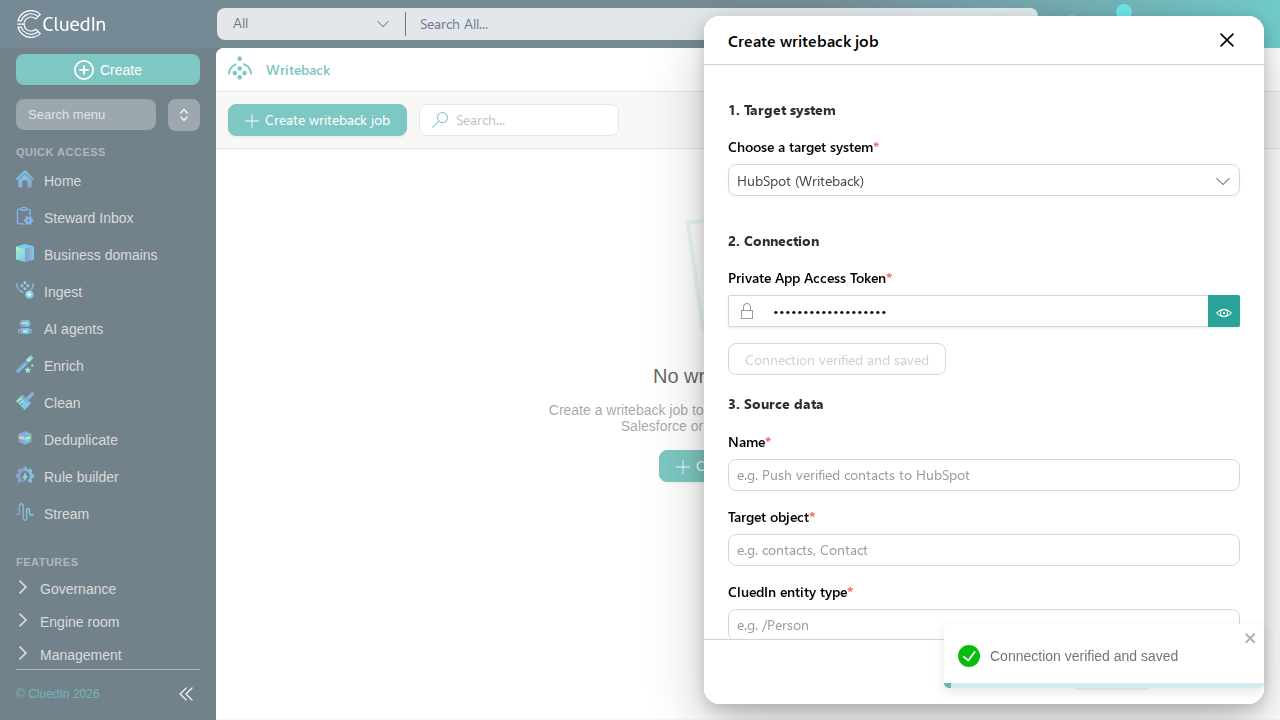
Create a writeback job
Once the connection is saved, the rest of the panel becomes available.
To create a writeback job:
-
Under Source data, enter a Name for the job, and the Target object on the target system that should receive the records.
-
Enter the CluedIn entity type to push (for example
/Person). -
(Optional) Enter a Selection criteria query to narrow which golden records of that entity type are pushed.
-
Under Field mapping, for each field you want to send, enter the CluedIn vocabulary key and the Target field it should fill. Select Add field mapping for each additional pair.
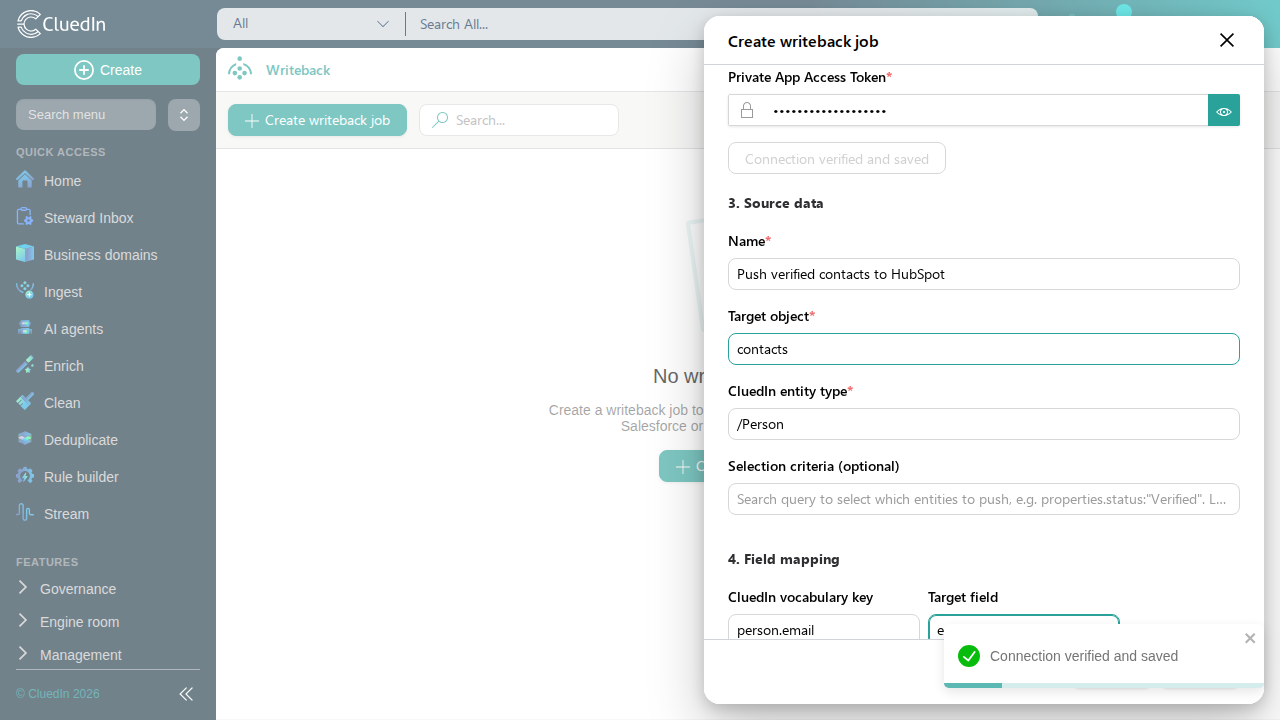
-
Select Create.
The job is created and its details page opens, where you can run it.
Verify the result
- After you create the job, it appears in the list on the Writeback page, and its details page shows an empty run history—no run has happened yet.
- The job’s connection is reusable: creating another writeback job for the same target system lets you select an existing connection instead of entering credentials again.
What this changes
- Connecting a target system and creating a job only saves configuration. No data is pushed until you run the job.
- Verifying a connection makes a real request to the target system with the credentials you entered, to confirm they work, before anything is saved.
If something goes wrong
- Verify & save connection fails. For HubSpot or Salesforce, the credentials were rejected by the target system—check that the access token, or the username, password, and security token, are correct and have not expired. For Generic REST, the base URL could not be reached—check that it is correct and that the API is reachable from your CluedIn deployment.
- Create is disabled. A required field is empty—most commonly, the connection has not been verified yet, or no field mapping has been entered.
- A Generic REST run fails even though the connection saved. Since Generic REST connections aren’t tested against a real endpoint, bad credentials or a wrong request path only surface once you run the job—check the run’s per-record errors for what the API actually returned.